CellarSync

CellarSync/Features/Report upload

Every report, one drop zone

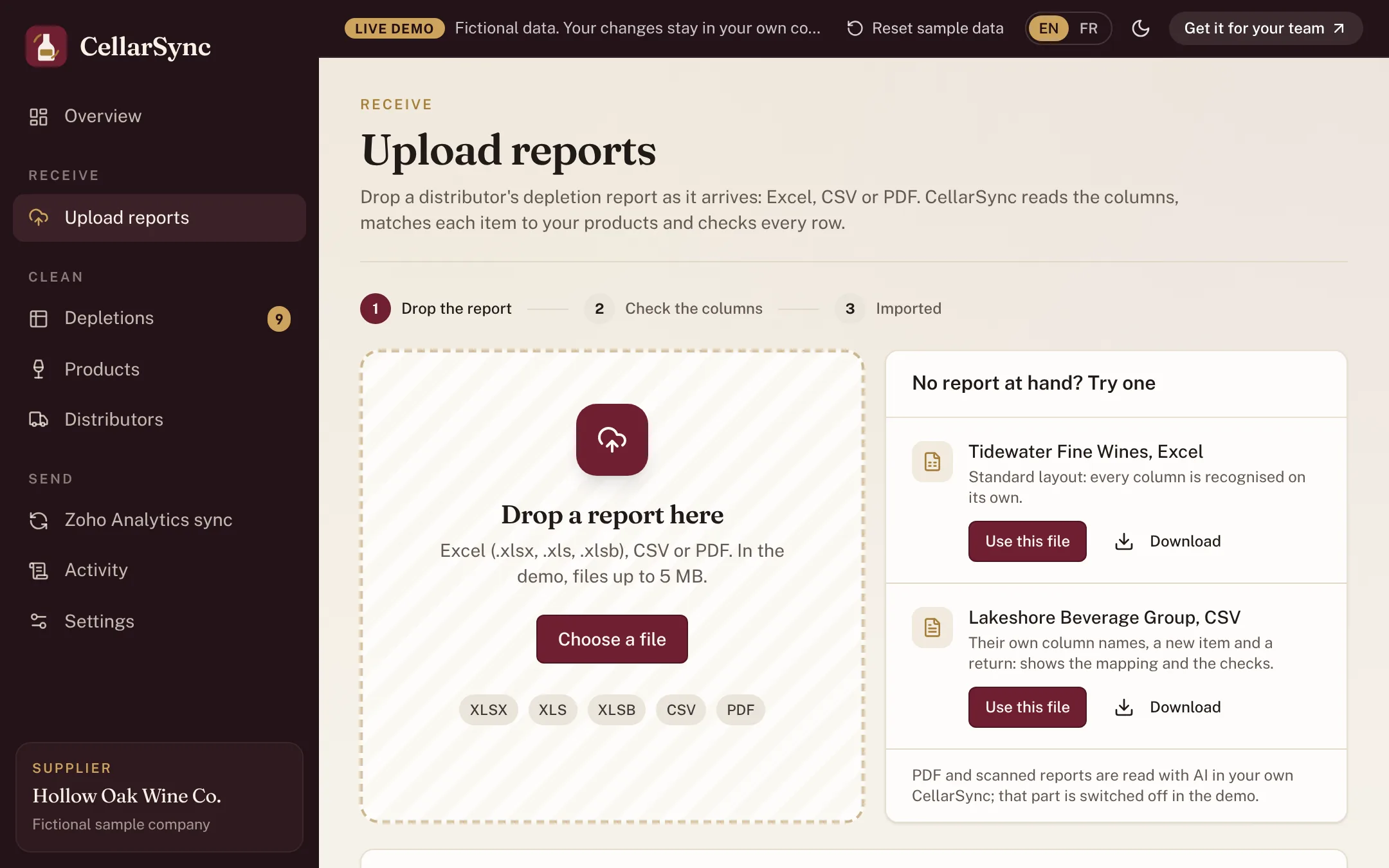
Distributors send depletions as Excel exports, CSV files or PDFs. CellarSync takes them all in the same place and keeps a list of every file received.

One click, no account. The data belongs to a fictional winery; you get your own copy, and it resets after 45 idle minutes.

Report uploadcellarsync.techma.ai/app
The upload page: a drop zone, two sample distributor files and the list of files received

What you can upload

  • Excel files (.xlsx, .xls and .xlsb), including workbooks with several sheets.
  • CSV files, whatever their separator and quoting.
  • PDF reports, including scanned ones, read with AI in a version for your team. The public demo works with Excel and CSV.

The list of files received

Each upload is listed with its distributor, the month it covers, how many rows were imported, its status and when it arrived. A file that could not be read says why, so you know to ask the distributor for another format.

Duplicates

Rows already imported are recognised and skipped, so uploading the same file twice, or a corrected file, does not double your cases.

Terms used on this page

Depletion

Questions

Asked before the first call

Can reports come from a shared folder instead of an upload?

Yes. CellarSync can open a SharePoint library and import files from it. That connection is switched off in the public demo.

What happens with a report that cannot be read?

It is listed as unreadable with the reason, and nothing is imported from it. The report tracker shows that distributor's month as missing until a readable file arrives.

Live demo

Pour a report in. Watch it come out clean.

CellarSync is a working application, not a mock-up. Upload a sample distributor file, check its columns, fix the rows it flags and run a sync to Zoho Analytics as a dry run.